Repair Windows 10/11 with Three DISM Commands
Use three quick DISM commands to check, scan, and repair Windows system images on Windows 10 and Windows 11.
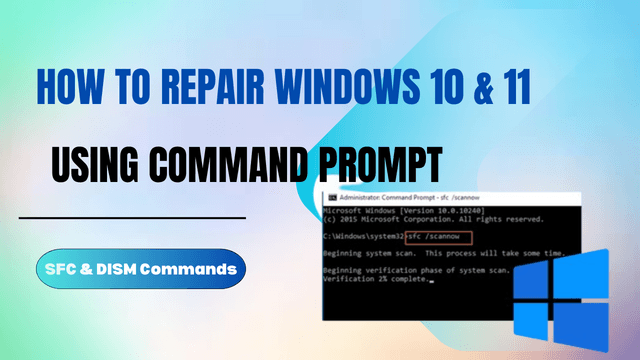
Overview
DISM (Deployment Image Servicing and Management) can quickly check and repair the Windows system image. Run these three commands in an elevated PowerShell or Command Prompt window to diagnose and fix corruption on Windows 10 or Windows 11.
When Should You Use DISM?
- Windows Update keeps failing or rolling back.
- System File Checker (SFC) cannot fix corruption.
- You see unexplained crashes, missing files, or UI glitches.
Before You Start
- Open PowerShell or Command Prompt as Administrator.
- Keep a stable internet connection so RestoreHealth can download clean files.
- Optional but recommended: create a restore point or backup first.
- Close heavy apps to avoid interruptions.
1) Quick Check for Flagged Corruption
Fast status check to see if the image is flagged as corrupted.
dism /Online /Cleanup-Image /CheckHealthIf DISM reports no corruption, you can still run the deeper scan below to be sure.
2) Deep Scan for Corruption
Thorough scan that logs any issues without repairing yet.
dism /Online /Cleanup-Image /ScanHealthThis step can take several minutes. It only reports problems; it does not fix them.
3) Repair the System Image
Downloads known-good files from Windows Update and repairs detected corruption.
dism /Online /Cleanup-Image /RestoreHealthIf offline or Windows Update is blocked, point to a local ISO source: Dism /Online /Cleanup-Image /RestoreHealth /Source:D:\sources\install.wim /LimitAccess
Common DISM Errors & Fixes
- 0x800f081f / source files could not be found: Mount a Windows ISO matching your build and use /Source.
- 0x800f0906: Check internet access and verify Windows Update is not blocked.
- Stuck at 20% or 40%: Wait it out; this can take 10–30 minutes on slower drives.
Optional: Run System File Checker
After DISM finishes, run SFC to repair any remaining system files:
sfc /scannowYouTube Walkthrough
Related Articles
Subscribe to the Newsletter
Get real-world IT troubleshooting guides, Azure VDI case studies, and sysadmin automation tips in your inbox.