Windows 11 KB5074109 Boot Fix: Restore Your PC After Update
KB5074109 (Jan 2026) caused boot failures for many Windows 11 PCs. Step-by-step recovery, prevention tips, and safe image sources.
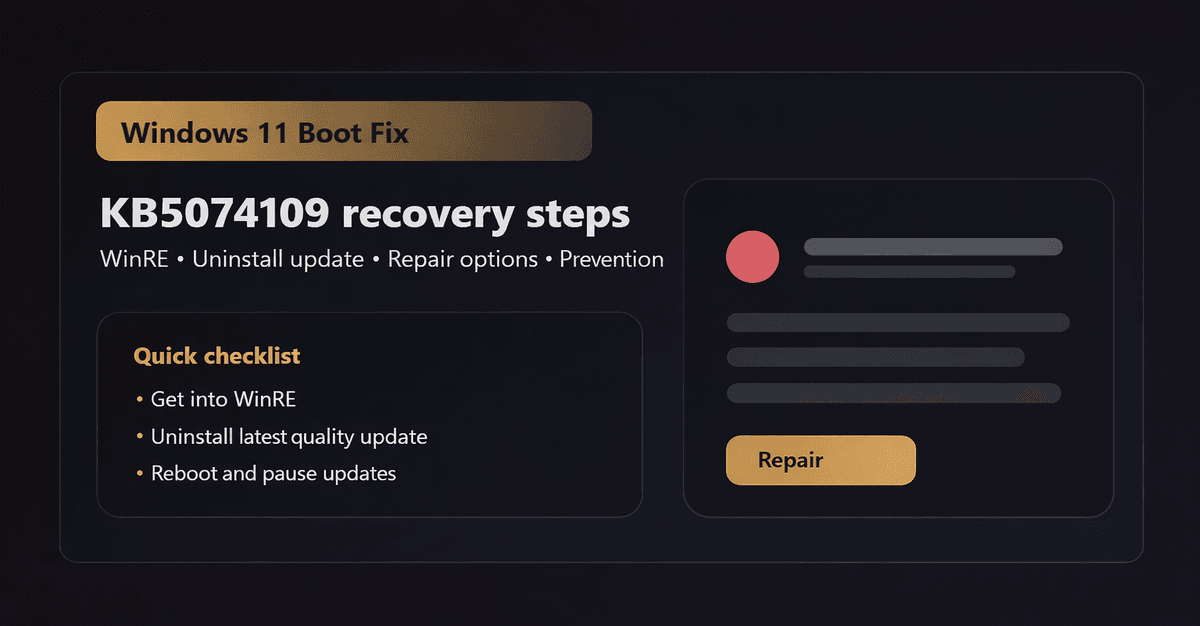
Overview
Experiencing a black screen or boot failure after the January 2026 Windows 11 update? You are not alone—many users reported problems linked to the KB5074109 patch. Most affected PCs can be restored without losing files.
Symptoms to Watch For
- Black screen after update (with or without cursor).
- Boot loop: Windows logo → restart → Windows logo.
- Automatic Repair loop ("Preparing Automatic Repair").
- BSOD crashes during boot.
- Hardware instability or network driver failures right after boot.
Why This Happened
Cumulative Windows updates touch kernel drivers, boot integrity, storage controllers, and shims. A small compatibility mismatch with hardware or security software can block startup.
Fix A: Uninstall Update via WinRE
1) Trigger WinRE
Power on PC, hold power button for 10s to force shut down. Repeat 2-3 times until Preparing Automatic Repair appears.
2) Uninstall Quality Update
Select Troubleshoot → Advanced options → Uninstall Updates → Uninstall latest quality update.
3) Reboot
Restart PC and verify Windows reaches desktop.
Fix B: Use USB Installation Media
If WinRE fails to load, create a Windows 11 installation USB on another PC, boot from USB, click "Repair your computer", and uninstall the latest quality update.
Advanced Recovery Options
- Startup Repair: In WinRE, select Startup Repair.
- System Restore: Restore to a checkpoint before update.
- Safe Mode: Boot into Safe Mode to remove conflicting drivers or security tools.
Preventing Future Problems
- Pause updates for 1-2 weeks after release.
- Keep at least 20GB free storage before cumulative updates.
- Update chipset and storage drivers prior to big updates.
FAQ
Can I uninstall the update without losing files?
Yes, uninstalling quality updates removes the patch code without touching personal documents.
What if WinRE asks for BitLocker key?
Enter your BitLocker recovery key stored in your Microsoft account or enterprise AD.
Related Articles
Subscribe to the Newsletter
Get real-world IT troubleshooting guides, Azure VDI case studies, and sysadmin automation tips in your inbox.