Fix "There Was a Problem Resetting Your PC" in Windows 11 (6 Ways)
Reset this PC not working in Windows 11? Try these 6 fixes including Startup Repair, SFC/DISM, System Restore, system image, recovery drive, or a clean install.
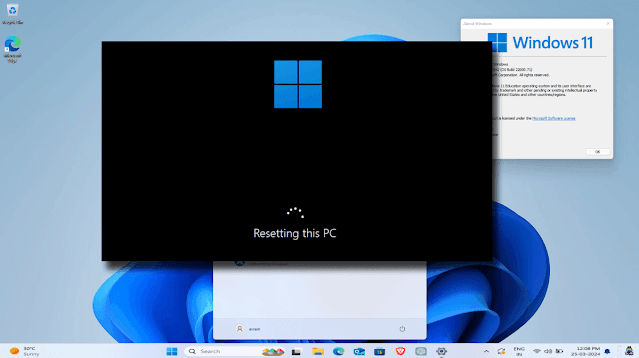
Overview
"Reset this PC" is like a digital time machine—but sometimes it loops or fails unexpectedly. Here are 6 practical fixes to get it working again.
Why This Error Happens
- Corrupted system files or Windows image
- Damaged Windows Recovery Environment (WinRE)
- Low free disk space or failing storage hardware
- Third-party antivirus or disk encryption conflicts
Before You Start
- Back up important files to an external drive or cloud storage.
- Disconnect unnecessary USB peripherals.
- Ensure at least 20 GB of free space on the system drive.
Solution 1: Run Startup Repair
- 1. Force-restart your PC three times to enter Advanced Startup.
- 2. Select Advanced options → Troubleshoot → Advanced options.
- 3. Click Startup Repair.
Solution 2: Try Command Prompt (SFC & DISM)
Open elevated Command Prompt and run:
sfc /scannow
dism /Online /Cleanup-Image /RestoreHealth
Solution 3: Use a System Restore Point
Press Win + R, type sysdm.cpl, open the System Protection tab, click System Restore, and pick a restore point prior to the issue.
Solution 4: Restore from System Image Backup
Navigate to Settings → System → Recovery → Advanced startup → System Image Recovery.
Solution 5: Recover from a USB Recovery Drive
Boot from a prepared USB Recovery Drive and select Use a device to perform automated repair.
Solution 6: Fresh Install Windows
Create installation media using Microsoft Media Creation Tool, boot from USB, and perform a clean install.
Extra Fix: Re-enable Windows Recovery Environment (WinRE)
If Reset fails immediately, WinRE might be disabled. Run in elevated Command Prompt:
reagentc /info
reagentc /enable
Reboot and try resetting the PC again.
FAQ
Will "Keep my files" erase apps?
Yes. It preserves personal files but removes installed desktop applications.
Is a clean install better than Reset?
A clean install is the most reliable recovery method when Windows files are severely corrupted.
Related Articles
Subscribe to the Newsletter
Get real-world IT troubleshooting guides, Azure VDI case studies, and sysadmin automation tips in your inbox.