Fix Error 0x80070520 on Windows 11 (Account Picture Issue)
Resolve Windows 11 error 0x80070520 when changing account pictures. Includes troubleshooting steps and a PowerShell fix.
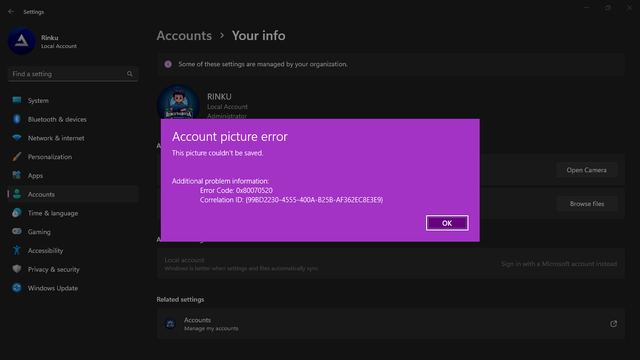
Overview
Windows 11 error 0x80070520 often appears when changing account pictures. Below are causes, quick fixes, and a PowerShell script workaround.
Understanding Error 0x80070520
This error can block profile customization and may signal permissions issues, file corruption, or software conflicts in the user AccountPictures folder.
Common Causes
- Corrupted system or account image files
- Permissions conflicts on local account folders
- Third-party security software interference
Troubleshooting Steps
- 1. Restart your PC to clear temporary glitches.
- 2. Update Windows via Settings → Windows Update.
- 3. Run Windows Update Troubleshooter.
- 4. Check user permissions or sign in as administrator.
- 5. Run System File Checker: sfc /scannow.
- 6. Disable third-party AV temporarily to test conflicts.
- 7. Perform a clean boot using System Configuration.
- 8. Use System Restore if the issue is recent.
Best Fix: PowerShell Script
First, set execution policy in an elevated PowerShell session:
Set-ExecutionPolicy -Scope Process -ExecutionPolicy BypassThen run the script to force update the profile picture registry path:
$profilePicturePath = "C:\Path\To\Your\Image.jpg"

New-Item -Path "HKCU:\SOFTWARE\Microsoft\Windows\CurrentVersion" -Name "AccountPicture" -ErrorAction SilentlyContinue | Out-Null
Set-ItemProperty -Path "HKCU:\SOFTWARE\Microsoft\Windows\CurrentVersion\AccountPicture" -Name "AccountPicturePath" -Value $profilePicturePath

$signature = @'
[DllImport("user32.dll", SetLastError = true)]
public static extern bool SendMessageTimeout(IntPtr hWnd, uint Msg, UIntPtr wParam, IntPtr lParam, uint fuFlags, uint uTimeout, out UIntPtr lpdwResult);
'@
$WinMsg = Add-Type -MemberDefinition $signature -Name WinMsg -Namespace Win32Functions -PassThru
$Result = [UIntPtr]::Zero;
$WinMsg::SendMessageTimeout([IntPtr]0xffff, 0x001A, [UIntPtr]::Zero, [IntPtr]::Zero, 0x2, 5000, [ref]$Result)Replace C:\Path\To\Your\Image.jpg with your actual image file path.
Conclusion
Error 0x80070520 can be annoying, but the steps and PowerShell script above typically resolve it without reinstalling Windows.
Related Articles
Subscribe to the Newsletter
Get real-world IT troubleshooting guides, Azure VDI case studies, and sysadmin automation tips in your inbox.