Enable Hibernate Mode in Windows 10/11 (3 Methods)
Enable Hibernate mode in Windows 10/11 using Control Panel, Command Prompt, or Registry Editor with step-by-step guidance and screenshots.
January 2026·7 min read·Security & Privacy
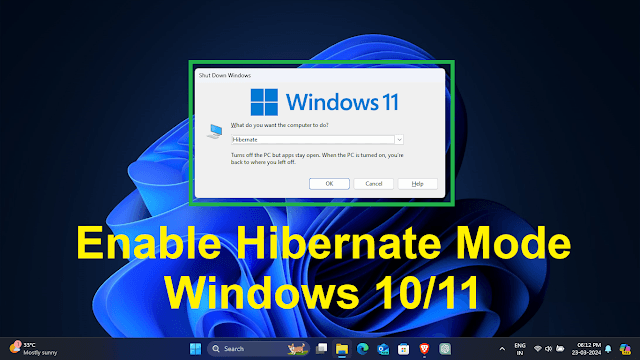
Overview
Hibernation protects data better, uses less power, and resumes faster than traditional sleep on many setups. Below are three reliable ways to enable Hibernate mode on Windows 10/11.
Hibernate vs Sleep (Quick Comparison)
- Sleep keeps your session in RAM and uses a small amount of continuous power.
- Hibernate saves the session to disk (hiberfil.sys) and uses almost zero power.
- Hybrid Sleep is a mix of both, available on select desktop systems.
Check If Available
Open an elevated Command Prompt and run:
cmd
powercfg /aThis shows which sleep states are available and whether Hibernate is currently disabled.
Method 1: Control Panel (Recommended)
- Step 1: Open Start and search for Control Panel.
- Step 2: Go to System and Security → Power Options.
- Step 3: Click Choose what the power button does.
- Step 4: Click Change settings that are currently unavailable.
- Step 5: Check Hibernate under Shutdown settings, then click Save changes.
Method 2: Command Prompt
Open Command Prompt as Administrator and run:
cmd
powercfg.exe /hibernate onMethod 3: Registry Editor
- Step 1: Press Win + R, type regedit, and press Enter.
- Step 2: Navigate to HKEY_LOCAL_MACHINE\SYSTEM\CurrentControlSet\Control\Power.
- Step 3: Double-click HibernateEnabledDefault and set value to 1, then click OK.
Note
Now you are all set to manage Hibernate Mode in Windows 10/11 efficiently.
Common Issues & Fixes
- Hibernate missing from Power menu: Run powercfg.exe /hibernate on and check Power Options.
- Low disk space: Reduce hiberfil.sys size using powercfg /h /type reduced.
- Fast Startup conflicts: Disable Fast Startup temporarily if Hibernate still does not appear.
Disable Hibernate (Optional)
If you want to disable hibernation and remove the hiberfil.sys file:
cmd
powercfg.exe /hibernate offRelated Articles
Subscribe to the Newsletter
Get real-world IT troubleshooting guides, Azure VDI case studies, and sysadmin automation tips in your inbox.
rinkurapria.devAn enterprise IT portfolio & sysadmin registry.
[●ENTERPRISE ENDPOINT ARCHITECTURE]
RINKURAPRIA
SYS·NODE: 28.6139° N, 77.2090° E·PROTOCOL: HTTPS/3 QUIC