Run External Drive OS as a VMware Workstation VM
Run an OS installed on an external drive directly inside VMware Workstation without modifying the original installation.
May 2026·5 min read·Linux Guides
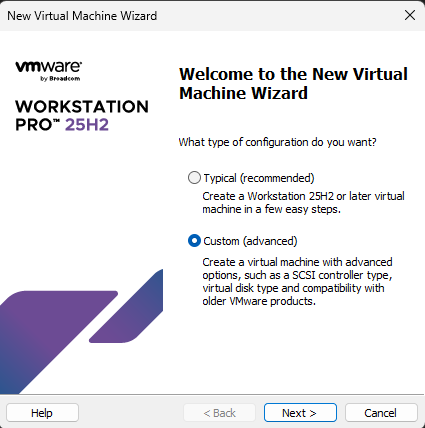
Overview
This concise walkthrough shows how to run an existing OS (installed on an external USB SSD or hard drive) inside VMware Workstation without changing the original installation.
Why Do This?
Virtualizing the external drive lets you boot the same system in a controlled VM environment while preserving the ability to boot the drive natively. It avoids cloning and minimizes risk to the original installation.
Prerequisites
- External drive with a working OS (Windows or Linux)
- VMware Workstation Pro (recommended) or Player
- Administrator privileges on the host
- USB 3.0 or faster connection for acceptable performance
High-Level Steps
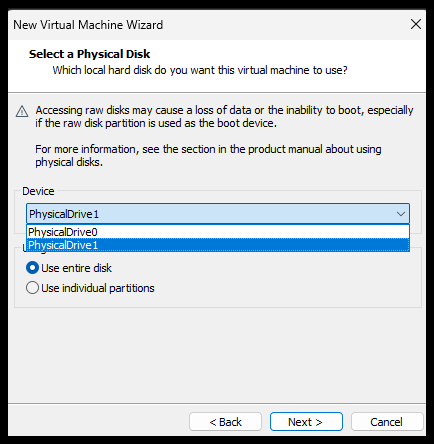
- 1. Identify the external disk number (Disk Management / PowerShell).
- 2. Create a small .vmdk mapping file pointing to the physical disk.
- 3. Create a VM and attach the mapping .vmdk as the VM disk.
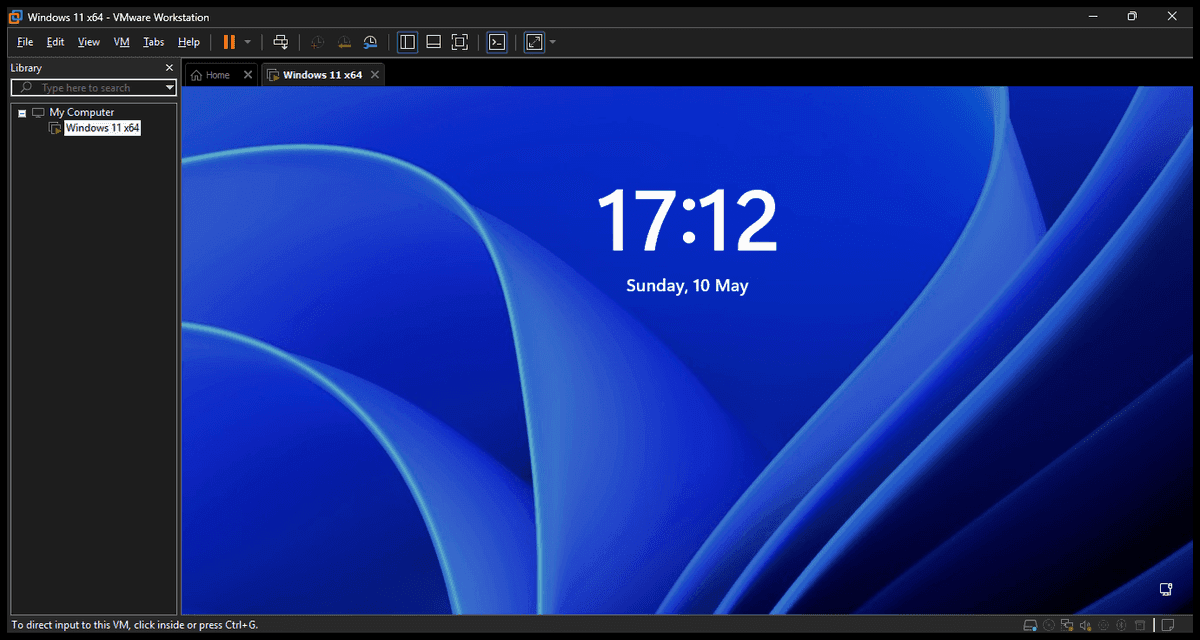
- 4. Boot the VM, install VMware Tools, verify drivers and activation.
PowerShell Commands (Run as Admin)
powershell
Get-Disk | Select-Object Number, FriendlyName, Size

# Create VM folder & map physical disk (replace PhysicalDrive2 with your disk number)
mkdir "C:\Users\$env:USERNAME\Documents\Virtual Machines\External-OS-VM"
cd "C:\Users\$env:USERNAME\Documents\Virtual Machines\External-OS-VM"
& "C:\Program Files\VMware\VMware Workstation\vmware-vdiskmanager.exe" -r \\.\PhysicalDrive2 external-drive.vmdk
Screenshots & Gallery
Tips & Precautions
- Do not mount the external disk on both host and VM simultaneously.
- Windows may require reactivation when hardware changes; keep your product key handy.
- Install VMware Tools for better graphics performance and mouse/clipboard integration.
- Back up the external drive before attempting raw-disk access.
Troubleshooting
- VM won't boot: Confirm the physical disk number and verify the drive connection.
- Slow performance: Use an SSD over USB 3.2 / Thunderbolt interface.
- Driver issues: Install VMware Tools and check Device Manager inside the VM.
Related Articles
Subscribe to the Newsletter
Get real-world IT troubleshooting guides, Azure VDI case studies, and sysadmin automation tips in your inbox.
rinkurapria.devAn enterprise IT portfolio & sysadmin registry.
[●ENTERPRISE ENDPOINT ARCHITECTURE]
RINKURAPRIA
SYS·NODE: 28.6139° N, 77.2090° E·PROTOCOL: HTTPS/3 QUIC