Turn Off Test Mode on Windows 10/11
Disable Windows Test Mode to stop loading unsigned drivers. Includes CMD and PowerShell methods with quick commands and safety notes.
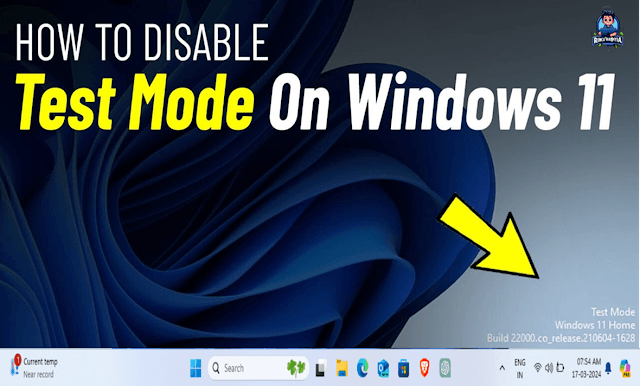
Overview
Test Mode lets Windows load unsigned drivers. That is useful during development, but risky to leave enabled on a daily driver. Here is why you should turn it off and the quickest ways to disable it with Command Prompt or PowerShell.
What is Test Mode?
Test Mode is a Windows boot setting that allows installation of unsigned or self-signed drivers. Developers use it to test drivers before getting a production signature. On everyday PCs, it weakens driver signature enforcement and can make the system more vulnerable.
How to Confirm Test Mode is Enabled
- Look for the "Test Mode" watermark in the bottom-right corner of the desktop.
- Run bcdedit /enum and check for testsigning Yes.
- Open System Information and look for "Test Mode" under system summary.
Why Disable Test Mode?
- It is usually meant for dev/test environments to load unsigned drivers.
- It can linger after an incomplete driver install.
- Malware can force Test Mode to bypass signature checks.
Video Walkthrough
Solution 1: Command Prompt
1) Open Command Prompt as Administrator
Press Win + S, search for cmd, then choose Run as administrator.
2) Disable Test Mode
Run the command below to turn Test Mode off:
bcdedit /set testsigning off3) Reboot
Restart Windows to apply the change and exit Test Mode.
Quick tip: To re-enable Test Mode later, run bcdedit /set testsigning on from an elevated prompt.
Solution 2: PowerShell
1) Open PowerShell as Administrator
Press Win + S, search for Windows PowerShell, and pick Run as administrator.
2) Run Command
bcdedit /set testsigning off3) Reboot
Restart Windows to exit Test Mode.
Common Issues & Fixes
- Access is denied: Make sure Command Prompt or PowerShell is opened as Administrator.
- Secure Boot enabled: Test Mode may not toggle if Secure Boot policies block it.
- Watermark still visible: Run the command again, then reboot. Fast Startup can delay changes.
FAQ
Will disabling Test Mode break my drivers?
Unsigned drivers that require Test Mode may stop loading. If a device stops working, uninstall the unsigned driver and install a signed version from the manufacturer.
Is it safe to keep Test Mode on?
It is not recommended on daily-use systems because it lowers protection against malicious drivers.
Related Articles
Subscribe to the Newsletter
Get real-world IT troubleshooting guides, Azure VDI case studies, and sysadmin automation tips in your inbox.